Features and FAQ - EZ Address Book Software
| Home | Features and FAQ | Order and Download | Testimonials | FREE Trial | Watch Demos |
|
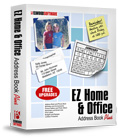
EZ Home and Office Address Book
v10.0
$29.95
Home > Features
|


EZ Address Book
Frequently Asked Questions
How do I get technical support?
Email us with your questions and concerns at support@ElwoodSoftware.com or select 'Email Elwood Software' from the Help Menu. We will call you if you email us a phone number and time to call. We're happy to help!
Is there a printed help manual?
No. Help is built into the program. Press F1 anywhere in the program for screen specific help. Select 'Watch Demos' from the Help Menu to view demos on the Elwood Software website.
How often should I backup my database?
VERY OFTEN because it's easy to do and will protect the changes you made since your last backup. Select 'Back Up Database' from the File Menu or press F5 to make a backup. The database can only be opened by EZ. It's a good idea to back up your database to your hard drive and an external storage device like a Flash Drive. Or consider using Dropbox. To restore from a backup, select 'Restore Database' from the File Menu. You can also backup the pictures in the EZ Pictures Directory by selecting 'Back Up Pictures' from the File Menu. Clip art and Pictures for labels in the EZ Graphics Directory must be backed up manually.
Can I have more than one database?
Yes. Select 'Open Database' from the File Menu to select, add, copy, rename, or delete a database. Any number of databases can be added. You could use one database for home and one for business. The EZHO.mdb database that comes with the program cannot be renamed or deleted. Databases cannot be merged so consider using categories instead of multiple databases. You can also select another database by selecting from the drop-down list on the toolbar. Each database must be backed up separately.
Where is the EZ database located?
All EZ databases are located in the folder:
c:\Elwood Software\EZ Home and Office\Data\
Can I password protect the program?
You can add a password to each database by selecting 'Database Password' from the File Menu. If a password is added, the 'Delete Database Records' function is also password protected.
How do I remove the sample names and other samples that come with the program?
Select 'Delete Database Records' from the Tools Menu to delete the sample data that comes with the program. If you have added names or other items you might need to delete the samples one at a time.
Can I change the program colors?
Select 'Options' from the Tools Menu to set screen colors, report colors, a phone number format, a birthday and anniversary reminder day range, and more. The Options Screen can be very helpful!
I don't need all the EZ features. Is there a way to simplify the program?
Yes. Choose 'Select Features' from the Tools Menu to select the features to show on the Features Menu and toolbar. Removing unwanted features can simplify the program and they can always be added back.
How many names can I add?
Any number of names can be added. Place the cursor over the name on the right side of the EZ Address Book Screen to show when the name was Last Updated or Added.
Can I sort by First Name?
You can either sort by First Name or Last Name throughout the program depending on your selection in Options.
How many categories can I add?
Any number of categories can be added. Categories are used to group names. Names can be in 1 to 10 categories. You could even add a temporary category named Anniversary Party and then add names to it for easy display in the address book and to print labels.
Is there an easy way to add or remove names in a category?
Use 'Select Names for Category' on the Tools Menu to easily add or remove names in a category.
What is the Group Name on the Entry Screen?
On the Name and Address Entry Screen you can enter a family name, business, organization, or some other group in the Group Name field. Some examples of Group Names:
Mr. and Mrs. Bob Smith
ABC Widget Company
Boy Scout Troop 123
The Group Name can also be used for cars, boats, houses, etc. Then you could add maintenance details, VIN numbers, and other information in the Notes field.
How do I add names for a family?
EXAMPLE of how to add a family using the Group Name on the Entry Screen:
First Name: Bob (optional)
Last Name: Smith (optional)
Group Name: Mr. and Mrs. Bob Smith
Other Names: Add each person in the family.
For proper sorting check 'Use First and Last Name for Sorting Only' so "Mr. and Mrs. Bob Smith" will NOT be sorted by M ("Mr.") throughout the program. The First Name and Last Name will NOT appear in the Printable Address Book, Phone Book, or on labels.
Can I import names and addresses from other programs?
Yes. You can import from CSV (Comma Separated Values or Comma Delimited) or Tab Delimited text files. Select 'Import to EZ' from the File Menu to import names, addresses, and other information. Press F1 on that screen for help. CSV files can be exported from many programs including Parsons. The Parsons Address Book does NOT export to Comma Delimited files correctly (handles imbedded commas incorrectly) so from Parsons export to a Tab Delimited File.
Is there a quick way to find a name in the address book?
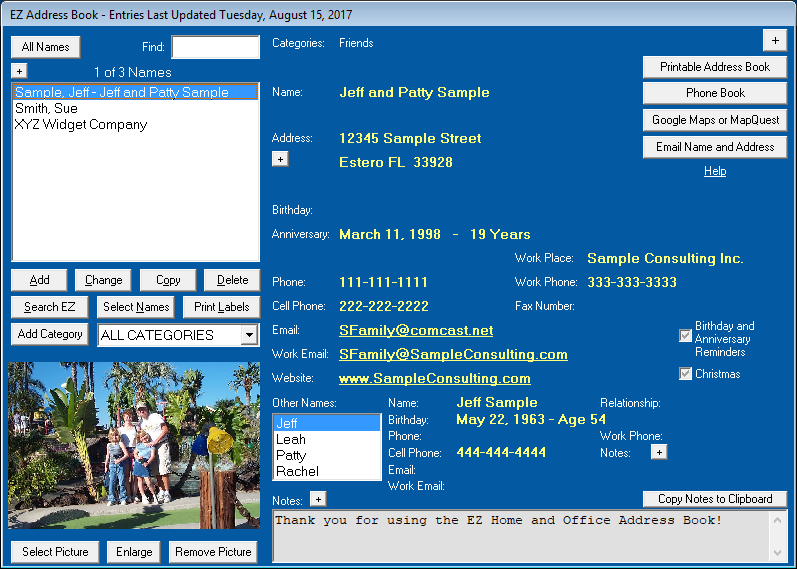
On the EZ Address Book Screen you can enter one or more letters in the 'Find' text box to find a name on the list or you can click 'Search EZ' to search the address book database.
How can I select which names are listed on the EZ Address Book Screen?
Click 'All Names' on the EZ Address Book Screen to list all names in the address book. Click 'Select Names' to individually select names from the currently listed names. Select from the category drop-down list to list names for a specific category. In Options, you can select a 'Default Category When Program Starts'.
Is there an easy way to select names for Christmas labels?
Yes! Use the 'Christmas' checkbox to make it easy to print Christmas labels or to select the names for the Printable Address Book, Phone Book, and Email Lists. You can check 'Christmas' when you add or change a name. Click 'Search EZ', select 'Christmas Only', and then click 'Print Labels' to print Christmas Labels. You can also click the 'Christmas' button on the Select Names for Labels and Envelopes Screen. Adding names to a category named "Christmas" is another way to accomplish the same thing. The 'Christmas' checkbox can be renamed or removed in Options.
Is there an easy way to add multiple names with the same address?
Click 'Copy' on the EZ Address Book Screen and select the fields you want to copy.
Can I add or customize address book fields?
You can't add fields but you can rename 'Phone', 'Cell Phone', 'Work Phone', 'Work Place', and 'Christmas' in Options. Any amount of text can be added to the Notes field.
I know I can select one category on the EZ Address Book Screen but can I select two?
Yes. Click 'Search EZ' on the EZ Address Book Screen and then select any combination of categories.
Can I print the address book?
You can print 3 different address book formats:
Picture Address Book
Select Fields Address Book
5 1/2 x 8 1/2 Address Book
Click 'Printable Address Book' on the EZ Address Book Screen or select 'Printable Address Book' from the Features Menu to display and print an address book. There are many options for customizing the printable address book - click the 'Format' and 'Select' buttons at the top of screen.
Can I export the address book?
You can export to a CSV file. Select 'Export to CSV File' from the File Menu to export the address book.
Can I email name and address information?
Yes. Click 'Email Name and Address' on the EZ Address Book Screen to send an email that can include the name, address, and other information for the selected name or all names listed. If there are too many names and addresses to launch your email software or EZ has compatibility issues with your email software, select 'Copy to Windows Clipboard' and then paste into your email. Sending an email works with Outlook and other non-web clients. It does not work with web-based services like Gmail.
How do I add birthday and anniversary reminders?
On the Name and Address Entry Screen check 'Birthday and Anniversary Reminders'. When the program starts, all names with the 'Birthday and Anniversary Reminders' checked and have a birthday or anniversary within the 'Day Range' set in Options will be displayed on the Birthday and Anniversary Reminders Screen. There's also a Birthday and Anniversary Calendar, a Printable Birthday and Anniversary Calendar, and a Birthdays and Anniversaries printable report. The year is not required when adding a birthday or anniversary.
Is there an easy way to select names for birthday and anniversary reminders?
Yes. Choose 'Select Names for Birthday Reminders' from the Tools Menu.
Can I add daily reminders?
Yes. Select 'Reminders' from the Features Menu to display either the Update Reminders Screen, the Reminder Calendar or Printable Reminders depending on the last one visited. Reminders can be added for appointments, special occasions, paying bills, or whatever you want. On the Update Reminders Screen you can select to show reminders 'Always', 'If Reminders Exist Within 0-99 Days', or 'Never' when the program starts. On the main address book screen calendar you can click on an underlined date to display reminders for that day.
What mailing labels does the program work with?
Avery Labels
5160, 8160 Label (30/Sheet) 1" x 2-5/8"
5161, 8161 Label (20/Sheet) 1" x 4"
5162, 8162 Label (14/Sheet) 1-1/3" x 4"
5163, 8163 Label (10/Sheet) 2" x 4"
5164, 8164 Label (6/Sheet) 3-1/3" x 4"
5167, 8167 Label (80/Sheet) 1/2" x 1-3/4" Return Address Labels
5195, 8195 Label (60/Sheet) 2/3" x 1-3/4" Return Address Labels
5366, 8366 Label (30/Sheet) 2/3" x 3-7/16" File Folder Labels
Other label forms will work if they match the label dimensions and layout of the label sheets.
Can I Make a One-Time Label?
Yes. Click 'Print Labels' on the EZ Address Book Screen and then click 'One-Time Name'. You can also enter one on the Select Names for Labels Screen. The name and address is temporary and will not be saved to the address book. You could also use the one-time function to make labels for file folders or other uses.
Can I skip used labels on my label sheet?
Yes. Click 'Skip' on the Labels and Envelopes Screen to skip labels already used. You can also click 'Select' for the Select Names for Labels Screen where you can skip noncontiguous labels.
Can I duplicate labels?
Yes. Click 'Duplicate' on the Labels and Envelopes Screen or on the Select Names for Labels Screen.
Can I adjust the alignment of the address lines on my labels and envelopes?
Yes. You can move the address and return address up/down/left/right by clicking on the arrow buttons at the top of the screen. You can also change the font and font size. The changes will be saved for each label form or envelope size.
Is there a way to capitalize the name and address on labels?
Yes. Check 'Capitalize Name' and/or 'Address' for Labels and Envelopes in Options. Everywhere else in the program the name and address will appear as how it was entered. There are other name formatting choices for labels and envelopes in Options.
Can I change the color of the text on labels and envelopes?
Yes. Click 'Custom' on the Labels and Envelopes Screen to change the color.
Can I add a return address to labels and envelopes?
You can add a return address to the larger labels and on envelopes. Click 'Custom' on the Labels and Envelopes Screen to add a return address. Any number of return addresses can be saved.
Can I add clip art or a picture to labels and envelopes?
You can add a graphic (clip art or picture) to all labels but not to envelopes. Click 'Custom' on the Labels and Envelopes Screen to add a graphic. EZ Home and Office comes with sample graphics which you can use.
Does EZ print business cards?
Yes. Select 'Business Cards' from the Features Menu to print business cards (10/Sheet). You need to create your own graphic for the business card image.
What can I use a Lockbox for?
A Lockbox can be used to store User IDs, Passwords, and other sensitive information. The Lockbox Password and any information added to the Lockbox are encrypted on the database. Any number of lockboxes can be added. Every lockbox is password protected so REMEMBER THE PASSWORD.
What is the Picture Gallery?
With the Picture Gallery you can view pictures in any directory on your computer and it has a slide show function. You can view 1, 4, or 16 pictures at a time.
What does 'Export Report' on the File Menu do?
All printable reports can be exported to other formats including the Adobe Acrobat Format (PDF). We recommend the PDF format. When on a printable report clickon the toolbar or select 'Export Report' from the File Menu to export a report.
What is the EZ Pictures Directory?
C:\Elwood Software\EZ Home and Office\Pictures\
The EZ Pictures Directory is the default directory for the Picture Gallery although you can view pictures in any directory. Pictures selected for the EZ Address Book must be in the EZ Pictures Directory. When a picture is selected for the EZ Address Book, it is automatically copied to the EZ Pictures Directory if not already there. The EZ Pictures Directory is created when the program is installed.
What is the EZ Graphics Directory?
c:\Elwood Software\EZ Home and Office\Graphics\
The EZ Graphics directory is the default directory for selecting a graphic (clip art or picture) for labels. When a graphic is selected for a label, it is automatically copied to the EZ Graphics Directory if not already there. The EZ Graphics Directory is created when the program is installed.
Are you planning an upgrade to the EZ Home and Office Address Book?
We upgrade the software often so let us know what you would like to see in the next upgrade.
ElwoodSoftware.com has a Shopper Approved Rating of 4.9 out of 5 based on 718 Ratings and Reviews
Copyright © 2023 Elwood Software.
All Rights Reserved.
Your Privacy is Always Protected.
Elwood Software, 21539 Brixham Run Loop, Estero, FL 33928
Support@ElwoodSoftware.com